Tiered Administration Model
The core insight behind AD tiering is simple: a credential that has ever touched a compromised machine is a compromised credential. If a Domain Admin logs into a regular workstation, and that workstation gets owned, game over. Tiering creates hard boundaries so that a low-level compromise can never directly expose high-privilege credentials.
The Legacy Tier Model (Still Widely Deployed)
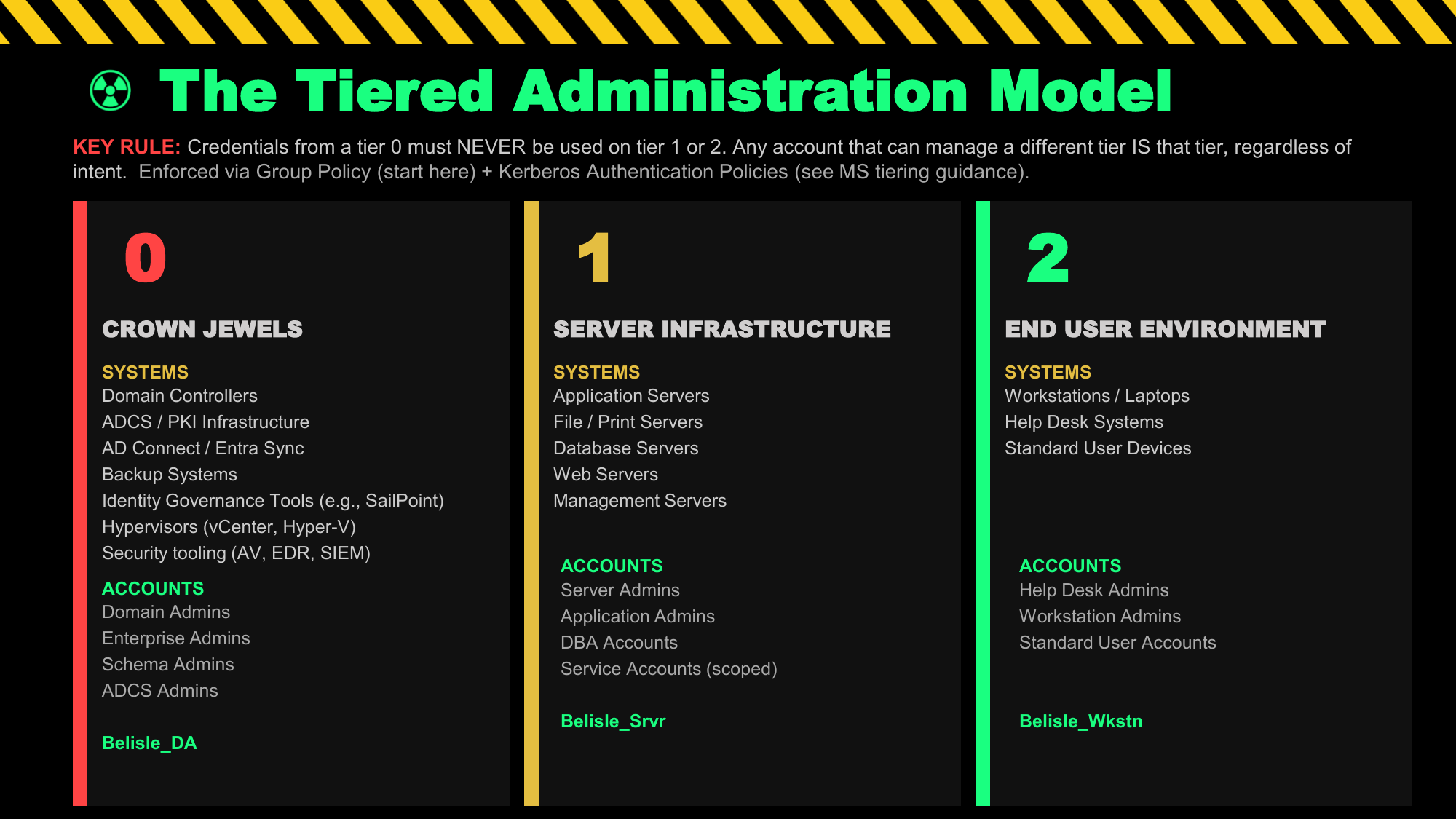
Microsoft's original tier model for partitioning administrative privileges divides the environment into three tiers, each with dedicated accounts and strict logon restrictions:
| Tier | What It Contains | Typical Accounts | Key Rule |
|---|---|---|---|
| Tier 0 | Domain Controllers, AD itself, PKI/ADCS, AD FS, Azure AD Connect, DNS, DHCP on DCs, any system with DC-level control | Domain Admins, Enterprise Admins, KRBTGT, Schema Admins, DC local admins | Tier 0 accounts never log into Tier 1 or Tier 2 systems |
| Tier 1 | Member servers: file servers, application servers, hypervisors, backup infrastructure, SCCM/SCOM, SQL servers | Server admins, SCCM admins, backup operators, Tier 1 service accounts | Tier 1 accounts never log into Tier 2 (user workstations) |
| Tier 2 | User workstations, laptops, BYOD — anything an end user touches | Helpdesk accounts (scoped to workstations), standard user accounts | Tier 2 accounts can access user resources but not servers or DCs |
The tiered model in practice: separate accounts per tier, enforced via GPO logon restrictions + Kerberos Authentication Policies
Any system that can control a DC is effectively Tier 0, regardless of where it sits in your OU structure. This includes: backup servers with DC backup jobs (restoring a DC backup = owning the domain), monitoring agents on DCs with local admin rights, SCCM if it can push packages to DCs, Azure AD Connect / Entra ID Connect servers (can sync credentials to/from Azure), jump servers with RDP access to DCs, and any system running Tier 0 service accounts.
Identity Governance and Administration (IGA) platforms such as SailPoint, Saviynt, and One Identity are frequently overlooked as Tier 0 assets. If an IGA platform can provision or deprovision accounts, modify group membership, or reset passwords for privileged accounts — including Domain Admins — then it can be used to create a DA account. That makes the IGA platform itself a Tier 0 system. Treat it accordingly: separate admin accounts, PAW access, and full audit logging.
Similarly, third-party PAM solutions (CyberArk, BeyondTrust, Delinea) that vault DA credentials are Tier 0 by definition. If an attacker compromises the PAM vault, they have all the DA credentials. The PAM infrastructure must be treated as security-critical as the DCs themselves. BloodHound will show you attack paths to Tier 0 you didn't know existed.
Microsoft's Enterprise Access Model (EAM) — The Modern Replacement
Microsoft replaced the legacy tier model with the Enterprise Access Model to address hybrid and cloud environments. The ESAE (Red Forest) architecture was formally retired. The EAM expands three tiers into five planes:
| EAM Plane | Legacy Equivalent | What It Covers |
|---|---|---|
| Control Plane | Tier 0 | Identity systems (AD, Entra ID, ADCS, AD FS, Azure AD Connect), Azure RBAC, ARM, anything that controls access control itself |
| Management Plane | Tier 1 (enterprise-wide IT) | Enterprise-wide IT management: SCCM, Intune, backup infrastructure, monitoring, hypervisor management |
| Data/Workload Plane | Tier 1 (per-workload) | Per-workload management: application servers, SQL, file servers, DevOps pipelines — often managed by business units, not central IT |
| User Access | Tier 2 | Standard users, B2B, B2C, external partners — accessing organizational resources via workstations or devices |
| App Access | (new in EAM) | Customer and partner access to specific applications; includes Entra External ID, B2C scenarios |
Whether you use legacy tiers or the EAM planes, the fundamental principle is identical: credentials from a higher-trust plane must never be exposed to lower-trust systems. A Control Plane admin account must never be used to check email, browse the web, or log into a workstation. The EAM simply extends this to cloud and hybrid scenarios.
The Reality: Full Tiering is Hard. Where to Start.
Most organisations can't implement full tiering overnight. Legacy applications break, service accounts span tiers, and institutional resistance is real. The practical approach is to prioritise ruthlessly:
Phase 1 — Tier 0 Isolation (highest ROI, do this first):
- Create dedicated Tier 0 admin accounts — completely separate from daily-use accounts. No email, no web browsing from these accounts, ever.
- Enforce logon restrictions via GPO:
Deny log on locally,Deny log on through Remote Desktop Services,Deny access to this computer from the networkfor DA/EA accounts on all non-DC/PAW machines. Use User Rights Assignment in GPO linked to Domain Controllers OU and member server OUs. - Add DA, EA, and Schema Admins (and any named privileged admin accounts) to the Protected Users group (see next section). Do not add KRBTGT — it is a service account and will break Kerberos domain-wide.
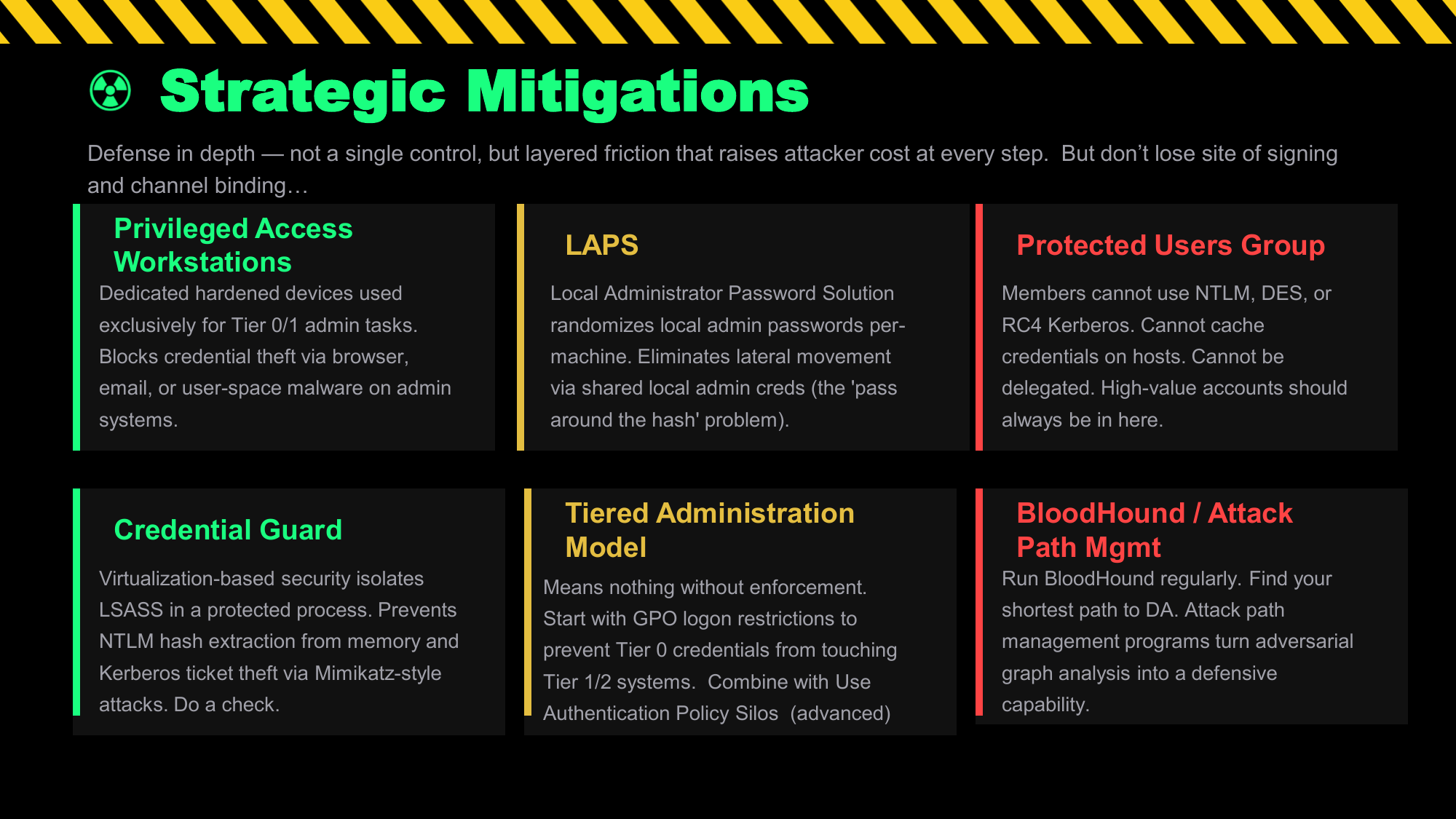
- Deploy LAPS on all machines — eliminates shared local admin passwords.
- Audit who actually has DA/EA rights. Most orgs have far more than they realise.
Phase 2 — Reduce the Blast Radius:
- Separate Tier 1 server admin accounts from Tier 0 accounts. Server admins should not be Domain Admins.
- Service accounts should never be Domain Admins. This is one of the most common unnecessary privilege escalation paths found in real environments. A service account running on a web server or SQL instance with DA rights means compromising that service gives an attacker full domain control. Audit with
Get-ADGroupMember "Domain Admins" -Recursive | Where-Object {$_.objectClass -eq 'user'}and cross-reference against service accounts (accounts with SPNs, names starting withsvc_, accounts used for scheduled tasks). Every DA membership should have a documented justification — if it doesn't, remove it. - Implement a PAW (or at minimum, a jump server with MFA) for Tier 0 tasks.
- Audit service accounts — most should be gMSAs, not user accounts with non-expiring passwords. Any service account that is a member of Domain Admins or other privileged groups should be treated as a critical finding and remediated immediately.
- Enable Credential Guard on all modern workstations to protect LSASS.
Phase 3 — Full Enforcement:
- GPO-enforced logon restrictions across all tiers, not just advisory.
- JIT (Just-in-Time) access for Tier 0 — no standing DA memberships.
- Authentication Policy Silos to restrict which machines Tier 0 accounts can authenticate from.
- Regular BloodHound scans to find new paths that violate tier boundaries.
LEGACY TIER MODEL — LOGON RESTRICTION RULES
No privileged account should ever be used on a system below its tier. A Domain Admin account must never log into a Tier 1 server or — especially — a Tier 2 workstation. Not to "quickly check something." Not when the normal admin account is unavailable. Never. If a Domain Admin logs into a workstation that a user also uses, that workstation's compromise (via phishing, malicious download, or any other vector) becomes a full domain compromise within hours. This single rule, enforced by GPO User Rights Assignment, eliminates the most common DA credential exposure path in the wild.
The GPO path is: Computer Configuration → Windows Settings → Security Settings → Local Policies → User Rights Assignment. Set Deny log on locally, Deny log on through Remote Desktop Services, and Deny access to this computer from the network for DA/EA on all non-DC/PAW computers. Apply this to a GPO linked at the domain level with Deny log on locally pointing to the DA and EA groups.
Protected Users Group & Delegation Controls
The Protected Users security group (introduced in Server 2012 R2 / Windows 8.1) is one of the most powerful and underused controls in Active Directory. Adding an account to this group forces a strict set of non-configurable protections at both the client and DC level. Unlike most AD settings, these protections cannot be overridden by GPO — they are enforced by the OS and KDC.
Requirements: Domain functional level must be Windows Server 2012 R2 or higher. Client-side protections require Windows 8.1 / Server 2012 R2 or later. The PDCe must run Server 2012 R2 or later for DC-side protections to activate.
What Protected Users Actually Does
| Protection Applied | What This Breaks / Side Effects |
|---|---|
| NTLM authentication blocked entirely — the DC refuses NTLM auth requests for accounts in this group | Connecting via IP address instead of FQDN (NTLM fallback). Any service requiring NTLM. RDP to servers by IP will fail — must use FQDN. |
| DES and RC4 cipher suites blocked for Kerberos pre-authentication — only AES128/AES256 allowed | Environments where AES is not configured on all systems. Any Kerberos-speaking service that only supports RC4 (old apps). Run klist — any RC4-encrypted tickets will stop working. |
| Kerberos constrained and unconstrained delegation blocked — the account's TGT cannot be forwarded | Service accounts that rely on Kerberos delegation will stop functioning entirely. Services using CredSSP-based delegation will fail. Do not add service accounts to this group if they use delegation. |
| TGT lifetime capped at 4 hours (non-configurable at the group level — Authentication Policy Silos can adjust this) | Users doing long-running tasks may get prompted to re-authenticate. Long-running processes that rely on Kerberos will need token renewal. |
| No credential caching on client — WDigest, Digest Auth, NTLM, and CredSSP cannot cache credentials; Kerberos long-term keys not cached | Offline logon disabled (cannot log in without DC contact). Digest authentication for IIS stops working. |
| Mitigates Pass-the-Hash — NTLM hashes are not cached and NTLM auth is rejected at DC | — |
| Mitigates Overpass-the-Hash / Pass-the-Ticket with RC4 — RC4 tickets are rejected; attacker needs AES keys | — |
Service accounts that use Kerberos delegation or NTLM — all authentication to services they serve will fail. Computer accounts — breaks DC and workstation authentication entirely. KRBTGT itself — do not add this; it's already protected differently. Test each account individually in a lab before production deployment. Microsoft's guidance is explicit: accounts for services and computers should not be members of Protected Users.
"Account is sensitive and cannot be delegated" — Only Needed When Protected Users Isn't Used
If an account is already a member of Protected Users, the "Account is sensitive and cannot be delegated" flag is completely redundant — Protected Users already blocks both constrained and unconstrained Kerberos delegation at the DC level. The TGT simply will not be forwarded regardless of the individual flag. There is no value in setting both.
The flag exists as a targeted, lighter alternative for accounts that cannot join Protected Users — typically service accounts that need NTLM authentication, require DES/RC4 Kerberos, rely on delegation themselves, or need TGT lifetimes longer than 4 hours. For those accounts, setting NOT_DELEGATED (userAccountControl bit 0x100000) blocks their TGT from being forwarded in delegation scenarios without breaking the other authentication features they depend on.
Specifically: if an attacker compromises a server with unconstrained delegation and captures forwarded TGTs, accounts with this flag set will not have their TGTs forwarded — the token cannot be used for delegation-based lateral movement. It does not prevent NTLM usage, credential caching, or Pass-the-Hash. Think of it as a targeted defence against delegation abuse specifically.
# Find all privileged accounts NOT in Protected Users
$protected = (Get-ADGroup "Protected Users" -Properties Members).Members
$privGroups = @("Domain Admins","Enterprise Admins","Schema Admins","Administrators")
foreach ($group in $privGroups) {
    Get-ADGroupMember $group -Recursive | Where-Object {
        $_.objectClass -eq 'user' -and $_.DistinguishedName -notin $protected
    } | Select-Object Name, SamAccountName
}

# Find accounts with Kerberos pre-auth disabled (AS-REP roastable)
Get-ADUser -Filter {DoesNotRequirePreAuth -eq $true} -Properties DoesNotRequirePreAuth |
    Select-Object Name, SamAccountName, DistinguishedName

# Set "Account is sensitive and cannot be delegated" on a user
Set-ADUser "admin_jsmith" -AccountNotDelegated $true

# Find all accounts that can be delegated (remove from privileged accounts)
Get-ADUser -Filter {AccountNotDelegated -eq $false -and AdminCount -eq 1} |
    Select-Object Name, SamAccountName
What "Cannot Be Delegated" Protects Against
If a server with unconstrained delegation is compromised (see Delegation Abuse), the attacker can harvest any TGT that gets forwarded to that server — including from privileged accounts that authenticate to it. Accounts with NOT_DELEGATED set or in Protected Users will not forward their TGT, so even if the server is owned, those credentials cannot be abused for further delegation-based movement.
# List all members of Protected Users
Get-ADGroupMember "Protected Users" -Recursive | Select-Object Name, objectClass

# Check a specific user's delegation settings
Get-ADUser "admin_jsmith" -Properties AccountNotDelegated, MemberOf |
    Select-Object Name, AccountNotDelegated,
        @{N="InProtectedUsers";E={$_.MemberOf -match "Protected Users"}}

# Find accounts configured for unconstrained delegation (high risk)
Get-ADComputer -Filter {TrustedForDelegation -eq $true} -Properties TrustedForDelegation |
    Select-Object Name, DNSHostName
Get-ADUser -Filter {TrustedForDelegation -eq $true} -Properties TrustedForDelegation |
    Select-Object Name, SamAccountName
Privileged Access Workstations (PAWs)
A Privileged Access Workstation is a dedicated, hardened device used exclusively for administrative tasks. The principle is clean source: you only administer sensitive systems from a device that is itself as secure as, or more secure than, those systems. Administering a DC from a workstation that a user also uses for email defeats the entire point.
PAW IS Used For:
- Administrative tasks on Tier 0 / Control Plane systems
- Connecting to DCs, ADCS, AD FS, Azure AD Connect
- Password manager access for privileged credentials
- Security tooling (BloodHound, SIEM console)
PAW Must NEVER Be Used For:
- Email, web browsing, social media
- Running untrusted code, opening documents
- General productivity work
- Accessing Tier 1 or Tier 2 systems with Tier 0 credentials
PAW Hardening Requirements
A PAW is only effective if it is significantly harder to compromise than standard workstations. Key hardening controls:
- Windows Credential Guard — virtualises LSASS in a hypervisor-protected container; extracted hashes and tickets from LSASS become computationally infeasible. Requires UEFI firmware with Secure Boot and VBS (Virtualization Based Security).
- Windows Defender Application Control (WDAC) / AppLocker — only signed, pre-approved applications can execute. Attackers cannot run tools even if they gain access.
- Bitlocker with TPM + PIN — full disk encryption with pre-boot authentication.
- No local admin for the daily-use persona — the admin's daily computer and the PAW are strictly separate. On the PAW itself, the Tier 0 account is used; it never touches the daily workstation.
- Host-based firewall restricting outbound — PAW should only communicate with specific AD management systems, not the internet.
- Separate physical device is ideal. A VM PAW provides weaker isolation — if the hypervisor host is compromised, the PAW is also at risk. Cloud-based PAWs (Azure Virtual Desktop) are increasingly viable and easier to manage at scale.
Physical vs Virtual PAWs — Microsoft's Guidance and Practical Reality
Microsoft's privileged access device guidance distinguishes between physical and virtual PAW deployments. The right choice depends on the tier being administered:
For accounts with access to Domain Controllers, ADCS, AD FS, or other Tier 0 systems, a dedicated physical device is the most defensible choice. A virtual PAW inherits risk from the hypervisor host — if the host OS is compromised, the VM is compromised. For the highest-value credentials, that risk is unacceptable.
Physical PAW characteristics: dedicated hardware used only for privileged tasks, full disk encryption with TPM+PIN, no email/browser/productivity software installed, Credential Guard and HVCI enabled, WDAC restricting execution to signed approved binaries.
For server admins (Tier 1) or workstation admins (Tier 2), a virtual PAW hosted on a secured hypervisor provides a reasonable balance of security and operational practicality. The administrator maintains a normal daily-use workstation for email/productivity, and launches the virtual PAW only for admin tasks.
Microsoft's Azure Virtual Desktop (AVD) is a viable cloud-based PAW option for organisations with hybrid environments — it provides Entra ID-integrated, session-isolated admin workstations without managing physical hardware, and integrates naturally with Entra PIM for JIT access.
If full PAW deployment is not immediately feasible: Tier 0 admins get a dedicated physical device (even a modest laptop used only for DC admin tasks), Tier 1 server admins get a VM-based PAW or a hardened jump server requiring MFA, and Tier 2 / workstation admins use a secured workstation with Credential Guard, WDAC, and a strict policy against using helpdesk credentials on personal machines. This staged approach delivers most of the security benefit while being operationally achievable.
Local Administrator Password Solution (LAPS)
LAPS solves one of the most common lateral movement enablers: shared local administrator passwords. If every workstation has the same local admin password (the classic "image password"), compromising one workstation gives an attacker local admin on every workstation. LAPS rotates each machine's local admin password independently and stores it in AD, readable only by authorised principals.
Legacy LAPS vs Windows LAPS
- Separate MSI install required on every endpoint
- Password stored in
ms-Mcs-AdmPwdas a readable plaintext string attribute in AD — anyone with delegated read rights retrieves it via LDAP (hence why LDAP signing matters and read access delegation must be tightly controlled) - Schema extension required
- Read access controlled by ACLs on the attribute
- Still widely deployed, still works
- Built into Windows — no separate MSI needed (KB5025229)
- Supports both on-premises AD and Entra ID
- Password encrypted at rest using DPAPI-NG; stored in
msLAPS-PasswordormsLAPS-EncryptedPassword - Password history support
- Supports multiple local accounts (not just the default Administrator)
- Event log:
Microsoft-Windows-LAPS/Operational
Security Risks with LAPS
By default, only Domain Admins can read LAPS passwords. When you delegate read access to helpdesk staff or server teams, those accounts become a target. An attacker who compromises a helpdesk account can read LAPS passwords for any machine that account has delegated read access to — potentially gaining local admin across a large fleet. Regularly audit who has ReadProperty on ms-Mcs-AdmPwd or msLAPS-Password.
# Find machines WITHOUT LAPS configured (ms-Mcs-AdmPwd not set)
Get-ADComputer -Filter * -Properties ms-Mcs-AdmPwd |
    Where-Object { $_.'ms-Mcs-AdmPwd' -eq $null } |
    Select-Object Name, DistinguishedName

# Find who has read access to LAPS passwords (legacy LAPS)
# Run on each OU - look for unexpected principals with ReadProperty on ms-Mcs-AdmPwd
Import-Module ActiveDirectory
$ou = "OU=Workstations,DC=domain,DC=com"
(Get-ACL "AD:\$ou").Access |
    Where-Object { $_.ActiveDirectoryRights -match "ReadProperty" -and
                   $_.ObjectType -eq "ms-Mcs-AdmPwd" } |
    Select-Object IdentityReference, ActiveDirectoryRights

# Windows LAPS: Check expiry and force rotation
Get-LapsADPassword -Identity "WORKSTATION01" -AsPlainText
Reset-LapsPassword -Identity "WORKSTATION01"
Monitor Event ID 4662 (Operation performed on object) on AD for read access to the ms-Mcs-AdmPwd attribute — this fires when someone reads a LAPS password. Unexpected reads (from non-helpdesk accounts, after hours, in bulk) are a strong indicator of lateral movement recon.
Group Managed Service Accounts (gMSAs) automatically rotate their own passwords (240 bytes, randomly generated, managed by the Windows OS via the Key Distribution Service), require no manual password management, and can be used by multiple servers simultaneously. For any service account that currently has a non-expiring password, migrating to a gMSA eliminates Kerberoasting risk for that account — a 240-byte random password is computationally infeasible to crack — and removes the credential management burden entirely. In Windows Server 2025 environments, Delegated Managed Service Accounts (dMSAs) go further by binding service account tickets to device identity via Credential Guard, meaning even if the password were somehow extracted, it cannot be used from a different machine.
Just-in-Time Access & Credential Guard
Just-in-Time (JIT) access means no standing privileged access. Instead of being a permanent member of Domain Admins, a privileged user requests elevation for a specific time window, performs their task, and the access is automatically revoked. This dramatically limits the window of exposure: even if an account is compromised, the attacker only has elevated access during the active window, not permanently.
JIT Options for Active Directory
Microsoft Identity Manager (MIM) PAM provides time-limited group membership for on-premises AD. When a user requests elevation, they are temporarily added to a privileged group in a bastion forest; after the TTL expires, membership is automatically removed.
Important: Microsoft's own documentation is explicit — MIM PAM is "not recommended for new deployments in Internet-connected environments." It is intended only for custom architectures in isolated, air-gapped environments such as offline research laboratories or disconnected OT/SCADA systems. For any standard enterprise environment with internet connectivity, Microsoft directs organisations to securing privileged access using Entra PIM and third-party PAM solutions instead.
Entra ID PIM is Microsoft's recommended JIT solution for internet-connected environments. It provides JIT access for Azure AD roles, Azure RBAC roles, and — in hybrid environments via Entra ID Connect — can be extended to on-premises AD groups. Eligible assignments require the user to activate their role (triggering MFA and producing an audit trail), and access expires automatically after a configured time window (default 1 hour, up to 24 hours configurable).
For organisations needing JIT access against on-premises AD without cloud dependency, dedicated PAM platforms such as CyberArk, BeyondTrust, and Delinea (formerly Thycotic/Centrify) provide credential vaulting, just-in-time access, session recording, and approval workflows. These integrate directly with on-premises AD and are the practical standard for enterprises that have a full JIT requirement on-premises. Note that the PAM infrastructure itself is Tier 0 — if the vault is compromised, the vaulted credentials are compromised.
Windows Credential Guard — Deep Dive
Credential Guard uses Virtualization Based Security (VBS) to isolate the LSASS process in a hypervisor-protected container. The isolated LSA process (LSAIso.exe) stores NTLM hashes, Kerberos TGTs, and domain credentials separately from the regular OS. Even a process running at SYSTEM or kernel level cannot read from this isolated container — it communicates only via RPC, and only with binaries signed by certificates trusted by VBS.
When Is Credential Guard Enabled by Default?
Default enablement status varies significantly by OS version — this is important to understand because many organisations assume it's on when it isn't:
| OS Version | Credential Guard Default | Notes |
|---|---|---|
| Windows 11 22H2+ (Enterprise/Education) | Enabled by default | If hardware requirements met and not explicitly disabled. Without UEFI lock by default. |
| Windows 11 Pro 22H2+ (if previously had CG) | May be enabled | Only if IsolatedCredentialsRootSecret registry key exists from prior Enterprise enrollment. |
| Windows Server 2025 | Enabled by default | If hardware requirements met and not explicitly disabled. |
| Windows 10 (all versions) | Not enabled by default | Must be explicitly enabled via GPO, Intune, or registry. |
| Windows Server 2016 / 2019 / 2022 | Not enabled by default | Must be explicitly enabled. Supported but requires manual configuration. |
| Windows 11/10 Home or Pro (without prior Enterprise) | Not available | Credential Guard is an Enterprise/Education feature. Not available on Home. |
If Credential Guard was explicitly disabled on a device before it was upgraded to Windows 11 22H2 or Server 2025, it will stay disabled after the upgrade — automatic default enablement does not overwrite an explicit disable. Check your fleet for devices in this state.
Hardware Requirements
- 64-bit CPU with hardware virtualisation support (Intel VT-x / AMD-V) and Second Level Address Translation (SLAT / EPT / RVI)
- UEFI firmware with Secure Boot enabled
- TPM (version 1.2 or 2.0) — required for UEFI lock and binding keys to hardware
- VBS-capable — the Windows hypervisor must be able to run; this excludes some virtualisation environments unless nested virtualisation is enabled
# Method 1: Check via WMI (0=Disabled, 1=Enabled but not running, 2=Enabled and running)
(Get-WmiObject -Namespace root\Microsoft\Windows\DeviceGuard -Class Win32_DeviceGuard).SecurityServicesRunning
# Value 1 in the array = Credential Guard is running

# Method 2: Via registry
Get-ItemProperty "HKLM:\SYSTEM\CurrentControlSet\Control\LSA" -Name LsaCfgFlags -ErrorAction SilentlyContinue
# 0 = disabled, 1 = enabled with UEFI lock, 2 = enabled without lock

# Method 3: System Information tool
# Run msinfo32.exe → System Summary → "Virtualization-based Security Services Running"
# Should show "Credential Guard" if active

# Fleet audit via PowerShell Remoting
Invoke-Command -ComputerName (Get-ADComputer -Filter * | Select -Expand Name) -ScriptBlock {
    $dg = Get-WmiObject -Namespace root\Microsoft\Windows\DeviceGuard -Class Win32_DeviceGuard -ErrorAction SilentlyContinue
    [PSCustomObject]@{
        Computer = $env:COMPUTERNAME
        CredentialGuardRunning = ($dg.SecurityServicesRunning -contains 1)
        VBSRunning = ($dg.VirtualizationBasedSecurityStatus -eq 2)
    }
}
Enable Credential Guard via GPO (Required for Pre-Windows 11 22H2)
Computer Configuration → Administrative Templates → System → Device Guard → Turn On Virtualization Based Security. Set to Enabled; set Select Platform Security Level to "Secure Boot and DMA Protection" (strongest); set Credential Guard Configuration to either:
- "Enabled with UEFI lock" — prevents remote/GPO disabling; requires physical presence to turn off. Use this for PAWs and high-value systems.
- "Enabled without lock" — allows remote disable via GPO; easier to roll back if compatibility issues arise. Use this initially during phased rollout.
What Credential Guard Prevents:
- Mimikatz
sekurlsa::logonpasswords— NTLM hashes not accessible from LSASS - Mimikatz
sekurlsa::tickets— Kerberos TGTs isolated in LSAIso.exe - Pass-the-Hash using NTLM hashes extracted from LSASS
- Pass-the-Ticket using TGTs extracted from LSASS
- Overpass-the-Hash using Kerberos long-term keys from LSASS
What Credential Guard Does NOT Prevent:
- Keylogging or credential capture before they reach LSASS
- Pass-the-Hash if the hash was obtained from a DC or network capture
- Kerberoasting — targets service tickets, not TGTs in LSASS
- Social engineering / plaintext credential theft
- DCSync — operates against DC, not local LSASS
- Attacks on systems that can't run VBS (older hardware, some VMs)
- CredSSP-based delegation — breaks SSO for 802.1x/RDP on some configs
Enabling Credential Guard will break NTLMv1 authentication and MS-CHAP entirely — both are incompatible with VBS isolation. In most modern environments this is acceptable (NTLMv1 should already be blocked), but older VPN configurations, wireless 802.1x with PEAP-MSCHAPv2, and some legacy applications may break. Test thoroughly before fleet deployment. Check for NTLMv1 usage in Event Viewer: Applications and Services Logs\Microsoft\Windows\NTLM\Operational.
Detection Engineering — By Attack Technique
Detection must be tied to the specific attacks covered throughout this site. Each technique leaves different artefacts; this section maps each attack to its observable signals, relevant Event IDs, and practical detection logic. For all Windows Security Event IDs, Advanced Audit Policy Configuration must be enabled — the legacy "Audit Policy" settings are insufficient. Configure via GPO: Computer Configuration → Windows Settings → Security Settings → Advanced Audit Policy Configuration.
Most security-relevant audit categories are not enabled by default. The table below summarises what matters most, drawn from Microsoft's audit policy recommendations. Configure via GPO on Domain Controllers: Computer Configuration → Windows Settings → Security Settings → Advanced Audit Policy Configuration.
| Audit Category / Subcategory | Windows Default | Required For |
|---|---|---|
| Audit Logon (Success + Failure) | Enabled by default (Success) | 4624, 4625, 4648 — authentication events |
| Audit Credential Validation (Success + Failure) | NOT default | 4776 — NTLM credential validation at DC |
| Audit Kerberos Service Ticket Operations (Success + Failure) | NOT default | 4769 — Kerberoasting, Silver Ticket detection |
| Audit Kerberos Authentication Service (Success + Failure) | NOT default | 4768, 4771 — AS-REP Roasting, TGT requests |
| Audit Directory Service Access (Success) | NOT default | 4662 — DCSync detection, object access |
| Audit Directory Service Changes (Success) | NOT default | 5136, 5137, 5141 — ACL changes, AdminSDHolder modification |
| Audit Sensitive Privilege Use (Success) | NOT default | 4672 — Special privilege logons (DA activity) |
| Audit Certification Services (Success + Failure) | NOT default | 4886, 4887 — ADCS certificate issuance |
| Audit File Share / Detailed File Share (Success) | NOT default | 5140, 5145 — SYSVOL access, coercion detection |
| Audit User Account Management (Success only) | Enabled by default (Success only) | 4720, 4722, 4723, 4726 — account creation/modification |
Kerberoasting requests Kerberos service tickets encrypted with the service account's key, then cracks the ticket offline. Critically: attackers do not target individual SPNs. Tools such as Rubeus, Invoke-Kerberoast, and Impacket's GetUserSPNs.py first issue an LDAP query for all accounts with a servicePrincipalName attribute ((&(objectCategory=user)(servicePrincipalName=*))), then request a service ticket for every account returned in one pass. This means the attack leaves a burst of 4769 events, not a single one — and it means a honey SPN account (covered below) will always be swept up in the same LDAP query and ticket request, making it an effective tripwire.
Legacy implementations request tickets encrypted with RC4 (EncryptionType 0x17) — suspicious in modern environments where AES should be the default. AES Kerberoasting (EncryptionType 0x12/0x11) is harder to detect as AES tickets are normal traffic, but the bulk-request pattern still holds.
What to Look For — Event 4769:
- Filter on
TicketEncryptionType = 0x17(RC4-HMAC) for the most reliable signal — this should almost never appear in environments with AES-only SPNs - Burst of 4769 events from a single source IP in a short window — because attackers enumerate ALL SPNs at once, you should see multiple service ticket requests in rapid succession (often within seconds), not a single isolated request
- Service ticket requests for multiple SPN-bearing accounts from the same source within a short time window, even in AES environments, is a strong Kerberoasting indicator
ServiceNameending in$is a machine account — focus on user accounts with SPNs- A request for service ticket from your honey SPN account is a definitive indicator — it will always be swept up in bulk enumeration
SecurityEvent
| where EventID == 4769
| extend TicketEncryptionType = tostring(EventData.TicketEncryptionType)
| where TicketEncryptionType == "0x17"  // RC4-HMAC
| where ServiceName !endswith "$"       // Exclude machine accounts
| summarize RequestCount = count() by IpAddress, Account, bin(TimeGenerated, 1h)
| where RequestCount > 5               // Adjust threshold
| order by RequestCount desc
Prevention:
- Migrate service accounts to gMSAs — 240-byte random passwords are computationally infeasible to crack, and password management is fully automated
- Ensure all SPNs use AES encryption only: set
msDS-SupportedEncryptionTypesto 24 (AES128 + AES256) on service accounts - Enforce strong passwords (25+ chars) on remaining user accounts with SPNs
- Run
Get-ADUser -Filter {ServicePrincipalName -ne $null} -Properties ServicePrincipalNameregularly to audit your SPN inventory
AS-REP roasting targets accounts with Kerberos pre-authentication disabled (DONT_REQUIRE_PREAUTH flag in userAccountControl). An AS-REP response is returned without requiring the client to prove they know the password first — the encrypted portion of the response can be cracked offline.
What to Look For:
- 4768 with
PreAuthType = 0(no pre-auth required) — this is the AS-REQ with no pre-auth; the DC returns an AS-REP that can be cracked - 4771 (Kerberos pre-auth failed) — notably, accounts with pre-auth disabled will NOT generate 4771 on failure, because failure handling is different. 4771 absence for targeted accounts is not diagnostic.
- Proactively: enumerate accounts with
DONT_REQUIRE_PREAUTHset — there should be almost none
# Find all accounts with Kerberos pre-authentication disabled
Get-ADUser -Filter {DoesNotRequirePreAuth -eq $true} `
    -Properties DoesNotRequirePreAuth, LastLogonDate, PasswordLastSet |
    Select-Object Name, SamAccountName, LastLogonDate, PasswordLastSet

# This should return 0 results in a well-managed environment
Prevention:
- Enable pre-authentication on all accounts:
Set-ADUser -Identity <user> -KerberosEncryptionType AES256 -Clear DoesNotRequirePreAuth - There is almost never a legitimate reason for pre-auth to be disabled in modern environments
Pass-the-Hash (PtH) is notoriously difficult to detect definitively because a valid NTLM logon with the correct hash looks identical to a legitimate logon. Detection is therefore anomaly-based, not signature-based.
What to Look For:
- 4624 Type 3 (network logon) with
AuthenticationPackageName: NTLMfrom an unusual source IP for that account - 4624 with LogonType 9 (NewCredentials) — used by
sekurlsa::pth(Mimikatz) to inject credentials; this logon type is rarely seen legitimately for privileged accounts - 4776 on DCs — NTLM credential validation; filter for privileged accounts and alert on unexpected source machines
- 4648 — explicit credential logon; Mimikatz PtH leaves this artefact
- The best detection: Microsoft Defender for Identity (MDI) has dedicated PtH detection using behavioural baselines
Prevention:
- Add privileged accounts to Protected Users — NTLM is blocked at the DC
- Enable Credential Guard to prevent NTLM hash extraction from LSASS
- Enable LSA Protection (
RunAsPPL = 1in registry) to make LSASS a Protected Process Light - Block NTLM where possible via GPO: Network Security → Restrict NTLM: Outgoing NTLM traffic to remote servers
DCSync mimics the behaviour of a domain controller performing replication, requesting password hashes for all accounts including KRBTGT. It requires DS-Replication-Get-Changes and DS-Replication-Get-Changes-All rights on the domain root object. Only legitimate DCs should ever perform this operation.
What to Look For — Event 4662:
- Source: Security log on Domain Controllers only
- Filter on
ObjectType = domainDNS(the domain root) - Filter on
Propertiescontaining any of these GUIDs:1131f6aa-9c07-11d1-f79f-00c04fc2dcd2— DS-Replication-Get-Changes1131f6ad-9c07-11d1-f79f-00c04fc2dcd2— DS-Replication-Get-Changes-All89e95b76-444d-4c62-991a-0facbeda640c— DS-Replication-Get-Changes-In-Filtered-Set
- Alert on: any account performing this that is not a DC computer account (DC computer accounts have names ending in
$)
SecurityEvent
| where EventID == 4662
| where ObjectType contains "domainDNS"
| where Properties has "1131f6aa" or Properties has "1131f6ad" or Properties has "89e95b76"
| where SubjectUserName !endswith "$"   // Exclude DC machine accounts
| project TimeGenerated, SubjectUserName, SubjectDomainName, IpAddress, Properties
Prevention:
- Audit who holds
DS-Replication-Get-Changes-Allon the domain root: only Domain Controllers and Domain Admins should hold this right - Remove it from any non-DC, non-DA account immediately
- For ACL/GPO-based persistence using DCSync rights, see ACL & GPO Abuse
Golden Tickets are forged TGTs signed with the KRBTGT hash. They can be crafted with arbitrary group memberships, any username, and custom lifetimes — including lifetimes exceeding the domain's maximum (10 hours by default). Detection relies on anomaly detection rather than inspecting the ticket directly, since the DC cannot distinguish a forged Golden Ticket from a legitimate one during validation.
What to Look For:
- Ticket lifetime anomalies: a 4769 request for a service ticket where the TGT lifetime claimed is over 10 hours (the default maximum) — the field
TicketOptionsand associated expiry metadata. Microsoft Defender for Identity detects this automatically. - Non-existent account names in Kerberos events — Golden Tickets can use accounts that don't exist in the domain
- 4672 (Special Logon) for unusual accounts at unusual times
- KRBTGT account password last changed date: if it's old, Golden Tickets forged before a password change are still valid. Reset KRBTGT password twice (two resets, waiting for replication between them) to invalidate all outstanding Golden Tickets.
Prevention:
- Protect KRBTGT — it must never be added to Protected Users (it is a service account and this would break Kerberos domain-wide). It is already protected via AdminSDHolder and tight ACLs, and is never used interactively. The key protection is keeping its hash out of attacker hands: Credential Guard, restricting DC access, and regular password rotation.
- Rotate KRBTGT password regularly (at minimum after any suspected Tier 0 compromise). Use Microsoft's New-KrbtgtKeys.ps1
- Deploy Microsoft Defender for Identity — it has dedicated Golden Ticket detection based on ticket attribute analysis
Silver Tickets are forged service tickets signed with the target service account's hash. They bypass the KDC entirely — the DC never sees the authentication. This makes them the hardest Kerberos ticket attack to detect natively, because by design, service ticket validation is performed by the service itself, not the DC.
What to Look For:
- 4624 logon to a service without a corresponding 4769 (service ticket request) on the DC for that account — if a user authenticates to a service but no 4769 was issued, the ticket was forged
- This requires correlating 4624 events on member servers with 4769 events on DCs — challenging without a SIEM
- Microsoft Defender for Identity performs this correlation automatically and has dedicated Silver Ticket detection
- PAC validation via
KDC PAC validation(enabled by default) causes service tickets to be validated against the KDC — this detects invalid PACs but adds DC load
Prevention:
- Prevent service account hash extraction in the first place: Credential Guard, LSA Protection, gMSAs
- Enable PAC Validation — the service sends the PAC to the DC for validation, catching forged Silver Tickets. Configure via registry:
ValidateKdcPacSignature = 1
Coercion attacks (PrinterBug, PetitPotam, DFSCoerce) force a target machine to authenticate outbound to an attacker-controlled host. The captured authentication is then relayed. See Coercion & Relay Attacks for attack details.
What to Look For:
- 5145 — Network share access auditing: look for access attempts to
\\<target>\IPC$,\\<target>\NETLOGON, or print spooler paths from unexpected sources - 4624 Type 3 from DCs to non-DC IPs — DCs normally don't initiate outbound NTLM connections to workstations; this is a red flag for coercion
- Network-level: outbound SMB (445/TCP) from DCs to non-DC hosts. Firewall rules should block outbound SMB from DCs to workstations — if you see it, something triggered it
Prevention:
- Disable the Print Spooler service on all DCs (not needed, high risk):
Stop-Service -Name Spooler; Set-Service -Name Spooler -StartupType Disabled - Enable SMB signing and LDAP signing + channel binding to prevent relay. See Authentication Protocols for full detail.
- Enable EPA (Extended Protection for Authentication) on ADCS web enrollment endpoints to prevent NTLM relay to ADCS
- Block outbound SMB from DCs to non-DC hosts at the firewall
- Disable WebDAV (
WebClientservice) on servers if not required — eliminates WebDAV-based coercion
ADCS attacks exploit misconfigured certificate templates to enroll certificates for arbitrary accounts, which can then be used for Kerberos PKINIT authentication. See ADCS section for full technique coverage.
What to Look For:
- 4887 (Certificate issued) — alert on certificates issued with a
SubjectAlternativeName (SAN)containing a privileged UPN (e.g.,administrator@domain.com,DA@domain.com) when the requesting account is not that user - 4886 (Certificate request received) — log all requests; look for templates that allow client authentication being requested with alternate SANs
- 4768 with
CertificateIssuerNamein PKINIT requests — certificate-based authentication; unexpected accounts authenticating via certificate should alert - Monitor which certificate templates have
CT_FLAG_ENROLLEE_SUPPLIES_SUBJECTset (allows requester to specify SAN) — any enabled template with this flag and client authentication EKU is ESC1
Prevention:
ACL-based backdoors and AdminSDHolder persistence (covered in ACL & GPO Abuse) involve modifying AD object security descriptors. These changes are logged on Domain Controllers when DS Access auditing is enabled.
What to Look For:
- 5136 (Directory service object modified) — filter on modifications to:
CN=AdminSDHolder,CN=System,DC=...— any change to AdminSDHolder ACL should immediately alert; this is how AdminSDHolder persistence is creatednTSecurityDescriptorattribute on Domain Admins, Enterprise Admins, Schema Admins, and the Domain Root object- GPO objects:
gPCFileSysPath,gPCMachineExtensionNames,gPLink
- 4662 — WRITE_DAC operations on sensitive objects (domain root, DA group, AdminSDHolder)
- 5137 (object created) — new GPO objects or OUs created unexpectedly
Prevention:
- Baseline the ACLs on all Tier 0 objects regularly. Compare against known-good. Tools: ADACLScanner, BloodHound
- Implement change management for AD ACL modifications — legitimate changes should be rare and traceable
Unconstrained delegation servers receive forwarded TGTs from authenticating users. An attacker who compromises such a server can extract those TGTs. See Delegation Abuse for full attack chains.
What to Look For:
- 4768 with
ForwardableTicket = Truetargeting a server with unconstrained delegation — legitimately expected, but review which accounts are forwarding TGTs to which servers - Authentication activity from servers with
TrustedForDelegation = truethat is unexpected — these servers are targets, so unusual outbound authentication from them (Spooler abuse, PetitPotam) should alert - Proactively: enumerate all machines with unconstrained delegation enabled. There should be almost none (only DCs by default). Any others are high-value targets.
# Machines with UNCONSTRAINED delegation (TRUSTED_FOR_DELEGATION)
Get-ADComputer -Filter {TrustedForDelegation -eq $true -and PrimaryGroupID -ne 516} `
    -Properties TrustedForDelegation, DNSHostName |
    Select-Object Name, DNSHostName
# PrimaryGroupID 516 = Domain Controllers - they legitimately have this

# Users with unconstrained delegation (should be 0)
Get-ADUser -Filter {TrustedForDelegation -eq $true} |
    Select-Object Name, SamAccountName

# Accounts with CONSTRAINED delegation - review what they can delegate to
Get-ADObject -Filter {msDS-AllowedToDelegateTo -like "*"} `
    -Properties msDS-AllowedToDelegateTo, ServicePrincipalName |
    Select-Object Name, "msDS-AllowedToDelegateTo"
Two 2026 Kerberos flaws disclosed by Semperis abuse the same weakness — Active Directory's name uniqueness checks are
weaker than the code paths that trust those names. ResetNightmare (CVE-2026-27912, patched 14 April 2026)
sets an account's userPrincipalName to a target's sAMAccountName, obtains an
NT-ENTERPRISE TGT, then abuses the Kerberos Change Password protocol
(port 464) — which never received the PAC_REQUESTOR_SID validation added for noPac — to reset any account's
password. KerberLoss (CVE-2026-25177, patched 10 March 2026)
registers colliding SPNs using unfilterable Unicode characters, causing service DoS, SPN-jacking, or a silent
Kerberos→NTLM downgrade. Both leave the same primary artefact: an anomalous name attribute written to a directory object.
Neither flaw has a clean workaround. Apply the March and April 2026 updates to every domain controller — they are separate patches and one does not cover the other. The detections below matter for retrospective hunting and for the DCs you haven't reached yet.
What to Look For:
- 5136 where
AttributeLDAPDisplayName = userPrincipalNameand the new value matches an existing account'ssAMAccountName— this has essentially no legitimate use and is a definitive ResetNightmare indicator - 5136 UPN writes that are set and then cleared or reverted within minutes — the attack chain removes the spoofed UPN after the password change to cover its tracks. The paired write/clear is the strongest signal.
- 5136 where
AttributeLDAPDisplayName = servicePrincipalNameand the value contains non-ASCII or zero-width characters, or duplicates an SPN already registered elsewhere in the forest (KerberLoss) - 4724 / 4738 password resets on privileged accounts with no corresponding help desk ticket or admin session — correlate against the 5136 UPN write immediately preceding them
- 4768 TGT requests where the account name in the request does not match the requesting account's own identity — the
NT-ENTERPRISEstep of the chain - New computer accounts created by non-admin users (MachineAccountQuota abuse) followed within seconds by a UPN write on that object — the attacker doesn't need an existing account, they can create one
- Bursts of
KRB_AP_ERR_MODIFIEDorKDC_ERR_S_PRINCIPAL_UNKNOWNerrors against a service that was working yesterday, or a service that has quietly stopped using Kerberos and started using NTLM (KerberLoss)
// Build the set of existing SAM account names from your IdentityInfo table
let SamNames = IdentityInfo
    | summarize by AccountName = tolower(AccountName);
SecurityEvent
| where EventID == 5136
| extend Attr    = tostring(EventData.AttributeLDAPDisplayName),
         NewVal  = tostring(EventData.AttributeValue),
         Op      = tostring(EventData.OperationType),
         Target  = tostring(EventData.ObjectDN)
| where Attr == "userPrincipalName"
| extend LocalPart = tolower(tostring(split(NewVal, "@")[0]))
| where LocalPart in (SamNames)          // UPN now impersonates another account
| project TimeGenerated, SubjectAccount = Account, Target, NewVal, Op
| order by TimeGenerated desc
SecurityEvent
| where EventID == 5136
| extend Attr   = tostring(EventData.AttributeLDAPDisplayName),
         Op     = tostring(EventData.OperationType),
         Target = tostring(EventData.ObjectDN)
| where Attr == "userPrincipalName"
| summarize Writes = count(),
            Ops    = make_set(Op),
            Window = max(TimeGenerated) - min(TimeGenerated)
          by Target, Account, bin(TimeGenerated, 15m)
| where Writes >= 2 and Window < 15m     // set, then reverted
| order by TimeGenerated desc
# --- ResetNightmare: any UPN whose local part matches another account's SAM name ---
$sam = @{}
Get-ADObject -LDAPFilter "(|(objectClass=user)(objectClass=computer))" `
    -Properties sAMAccountName, userPrincipalName |
    ForEach-Object { if ($_.sAMAccountName) { $sam[$_.sAMAccountName.ToLower()] = $_.DistinguishedName } }

Get-ADObject -LDAPFilter "(userPrincipalName=*)" -Properties userPrincipalName, sAMAccountName |
    ForEach-Object {
        $local = ($_.userPrincipalName -split '@')[0].ToLower()
        if ($sam.ContainsKey($local) -and $sam[$local] -ne $_.DistinguishedName) {
            [PSCustomObject]@{
                Object      = $_.DistinguishedName
                SpoofedUPN  = $_.userPrincipalName
                Impersonates = $sam[$local]
            }
        }
    }
# Any result here is a live UPN collision. Investigate before clearing it.

# --- KerberLoss: SPNs containing non-ASCII / invisible characters ---
Get-ADObject -LDAPFilter "(servicePrincipalName=*)" -Properties servicePrincipalName |
    ForEach-Object {
        foreach ($spn in $_.servicePrincipalName) {
            if ($spn -match '[^\x20-\x7E]') {
                [PSCustomObject]@{ Object = $_.DistinguishedName; SPN = $spn }
            }
        }
    }

# --- KerberLoss: duplicate SPNs across the forest ---
setspn -X
Prevention:
- Patch every DC with the March 2026 (KerberLoss) and April 2026 (ResetNightmare) updates — this is the actual fix for both
- Set
ms-DS-MachineAccountQuotato 0 and delegate machine-join rights explicitly. This removes the "just create an account I control" path that makes the prerequisites trivial for both attacks — and closes the same door for noPac and RBCD abuse. - Audit and strip
WritePropertyonuserPrincipalNameandservicePrincipalNamefrom non-admin principals — including self-write, which is easy to overlook - Enable Audit Directory Service Changes (Success) and configure a SACL on user and computer objects — 5136 is not logged without both
- Alert on password resets against Tier 0 accounts that no privileged session initiated (see Tiered Administration)
Deception & Honey Accounts
Deception-based detection creates high-confidence, low-noise alerts. Because honey accounts and honey tokens have no legitimate use, any interaction with them is definitively malicious — no tuning, no false positives. These are some of the most effective early warning mechanisms in AD environments.
Honey Accounts
A honey account is a user account that looks attractive to attackers but is never used legitimately. The name is critical — it must be plausible: svc_backup, admin_legacy, svc_sqlprod, IT_helpdesk. Names that look like they might have interesting privileges, service accounts, or forgotten admin accounts.
Setup:
- Create the account in a plausible location (not an obvious honey OU)
- Set a strong, long, random password — the account should not be crackable if harvested
- Set a non-trivial
descriptionfield (attackers read descriptions): something like "Legacy backup service - do not delete" - Set
PasswordNeverExpires = $true— this is what attackers look for - Never authenticate with this account, ever. Its last logon time should be zero or very old.
- Optionally: give it a fake SPN so it shows up in Kerberoasting results, but use a 127+ character password so the hash is uncrackable
Alert On (any of these = active attack):
- 4624 — successful logon with the honey account: someone used the credentials. Critical alert.
- 4625 — failed logon attempt: someone is trying to authenticate with this account. High confidence the credentials were harvested and are being tested.
- 4768/4769 — Kerberos ticket request for the honey account: attacker is attempting Kerberoasting or lateral movement
- 4771 — Kerberos pre-auth failure: spray/brute attempt against this account
Honey Credentials in Common Locations
Attackers running automated tooling often harvest credentials from common locations. Placing fake credentials in these locations creates additional tripwires:
- SYSVOL / GPP-style XML files — place a decoy
Groups.xmlwith an obviously fake but plausiblecpasswordvalue. Alert on any authentication attempt using the decoy account. - Web shares / file servers —
credentials.txt,passwords_backup.xlsx,config.iniwith fake credentials. Use Canarytokens to get alerts when the file is opened. - LSASS memory canaries — Microsoft Defender for Identity and some EDR solutions can place dummy credentials in LSASS memory that alert when harvested
Honey SPNs for Kerberoasting Detection
Create a user account with a plausible SPN (e.g., MSSQLSvc/legacy-sql01:1433) and a very long random password (127+ characters). Register the SPN: setspn -A MSSQLSvc/legacy-sql01:1433 svc_honeysql. Any Kerberoasting tool will pick this up and request a service ticket. Alert on 4769 for this account. Because the password is 127+ chars, the RC4 hash will never be cracked — the account is purely a sensor.
Canarytokens.org (by Thinkst) provides free, easy-to-deploy web bugs, DNS canaries, and document canaries. A Canarytoken Word document dropped on a file share will phone home when opened, revealing the attacker's IP. Their AD Login Canary Token can be deployed as a honey account that fires an alert on any logon attempt — no SIEM required.
BloodHound-Informed Hardening
BloodHound doesn't just help attackers find paths to Domain Admin — it's one of the most powerful defensive tools available for identifying and eliminating attack paths before attackers exploit them. Running BloodHound from a defensive perspective and fixing what it finds is among the highest-value hardening activities you can do.
You cannot guard every road. Run BloodHound as a defender — find your chokepoints, then instrument and monitor those specifically.
Defensive BloodHound Workflow
Run SharpHound (or BloodHound CE's built-in collector) regularly — at minimum weekly, or after any significant change. Use the All collection method to get the full picture including ACLs, sessions, and local admin rights.
# Full collection (run as a domain user from a domain-joined machine)
.\SharpHound.exe --CollectionMethods All --ZipFileName bloodhound_$(Get-Date -Format yyyyMMdd).zip

# More targeted - just ACLs and group memberships (faster, less network noise)
.\SharpHound.exe --CollectionMethods DCOnly --ZipFileName bh_dconly.zip
Key queries to run in BloodHound after ingesting data:
- "Find Shortest Paths to Domain Admins" — shows every attack path from any node to DA. Focus on paths with the fewest hops first.
- "Find Principals with DCSync Rights" — should only be Domain Controllers and Domain Admins. Any other account needs investigation.
- "List All Kerberoastable Accounts" — each one is a potential credential. Migrate to gMSAs or enforce strong passwords.
- "Find AS-REP Roastable Users" — should return zero. Immediately enable pre-auth on any that appear.
- "Shortest Paths to Unconstrained Delegation Systems" — those machines are high-value targets; check who can admin them.
- "Find Computers where Domain Users are Local Admin" — widespread local admin rights enable easy lateral movement. Remediate with LAPS + remove from Administrators group.
Run BloodHound before and after hardening efforts to measure reduction in attack paths. BloodHound Enterprise provides automated path tracking and regression detection. With Community Edition, compare the JSON output across runs to see what changed. A useful metric: count the number of nodes from which Domain Admin is reachable in 3 hops or fewer — work to drive that number toward zero.
Custom Cypher Queries for Defenders
// All users with GenericAll on a Group (direct DACL escalation)
MATCH (u:User)-[:GenericAll]->(g:Group) RETURN u.name, g.name

// Accounts with GenericWrite on other users (can set SPN for Kerberoasting)
MATCH (u:User)-[:GenericWrite]->(v:User) RETURN u.name, v.name

// All paths from non-admin users to Domain Admin in 4 hops
MATCH p=shortestPath((u:User {admincount:false})-[*1..4]->(g:Group {name:"DOMAIN ADMINS@DOMAIN.LOCAL"}))
RETURN p

// Computers with unconstrained delegation (excluding DCs)
MATCH (c:Computer {unconstraineddelegation:true})
WHERE NOT c.name ENDS WITH "DC01.DOMAIN.LOCAL"  -- adjust for your DCs
RETURN c.name

// Users with path to Tier 0 via ACL only
MATCH p=(u:User)-[:GenericAll|GenericWrite|WriteDacl|WriteOwner|Owns*1..]->(g:Group)
WHERE g.highvalue = true
RETURN u.name, g.name
Quick Wins Checklist
If you're unsure where to start, this list is ordered by impact-to-effort ratio. The top items remove the most common attack paths with the least implementation complexity.
-
Critical
Add DA, EA, Schema Admins, and named privileged accounts to Protected UsersBlocks NTLM, RC4 Kerberos, delegation, and credential caching for privileged accounts. Do NOT add KRBTGT (breaks Kerberos domain-wide), computer accounts, or service accounts using NTLM/delegation. Test individual accounts in a lab first.
-
Critical
Enforce logon restrictions for Tier 0 accounts via GPOUse "Deny log on locally" and "Deny log on through Remote Desktop Services" GPO settings to prevent DA/EA credentials from ever being used on non-DC/PAW machines.
-
Critical
Deploy LAPS on all workstations and serversEliminates shared local admin passwords. Prefer Windows LAPS (built-in) on modern systems. Blocks one of the most common lateral movement vectors.
-
Critical
Audit and reduce DA/EA membershipMost environments have far more Domain Admins than needed. Each one is a potential target. Run
Get-ADGroupMember "Domain Admins" -Recursiveand remove all unnecessary members. -
Critical
Verify no service accounts are members of Domain Admins or other Tier 0 groupsA service account with DA rights running on any server means that server's compromise equals full domain compromise. Identify service accounts by SPN, naming convention (
svc_,sa_), or non-interactive account type, then cross-reference DA membership. There is almost never a legitimate reason for a service account to be DA — it is virtually always a misconfiguration from initial setup that was never corrected. -
Critical
Disable Print Spooler on all Domain ControllersEliminates PrinterBug / SpoolSample coercion. The print spooler has no legitimate function on DCs.
Stop-Service Spooler; Set-Service Spooler -StartupType Disabled -
High
Enable Credential Guard on all modern workstationsPrevents NTLM hash and TGT extraction from LSASS. Requires VBS/UEFI. Deploy via GPO: Device Guard → Turn On Virtualization Based Security.
-
High
Enable LDAP signing, channel binding, and SMB signing on DCsLDAP signing prevents relay of LDAP authentication; channel binding ties LDAP sessions to the TLS channel preventing relay even when signing is in place. SMB signing prevents SMB relay. These protections are critical for both NTLM and Kerberos relay defense — CVE-2026-20929 proved that Kerberos can be relayed cross-service via DNS CNAME abuse, so signing/CBT are no longer optional even in NTLM-disabled environments. The nuances of each — what exactly to enable, where, GPO paths, and what breaks — are covered in depth on the Authentication Protocols page. Also enable Extended Protection for Authentication (EPA) on ADCS web enrollment endpoints to block relay to ADCS.
-
High
Find and fix AS-REP roastable accounts
Get-ADUser -Filter {DoesNotRequirePreAuth -eq $true}— should return zero. Enable pre-auth on every account that appears. This is quick to fix and removes an easy attack vector. -
High
Migrate service accounts with SPNs to gMSAsEliminates Kerberoasting for those accounts — 240-byte auto-rotating random passwords are computationally infeasible to crack. Run BloodHound "Kerberoastable Accounts" query to find targets.
-
High
Set "Account is sensitive and cannot be delegated" on privileged accounts that cannot join Protected UsersIf an account is already in Protected Users, this flag is completely redundant — delegation is already blocked. Only set this on accounts excluded from Protected Users (e.g., service accounts needing NTLM or longer TGT lifetimes) to prevent TGT forwarding via unconstrained delegation.
-
High
Run BloodHound and fix the shortest paths to DAFocus on the fewest-hop paths first. Even fixing 2-3 hop paths from non-admin users dramatically improves your security posture.
-
Medium
Deploy honey accounts with alertingCreate 2-3 honey accounts with plausible names, SPNs, and never-used credentials. Alert on any 4624, 4625, 4768, 4769. Zero-noise, high-confidence early warning.
-
Medium
Audit unconstrained delegationNo machines except DCs should have unconstrained delegation enabled. Find with BloodHound or:
Get-ADComputer -Filter {TrustedForDelegation -eq $true -and PrimaryGroupID -ne 516} -
Medium
Enable and collect DS Access audit events (5136, 5137, 4662)Required for detecting ACL manipulation, AdminSDHolder backdoors, and DCSync. Must be enabled in Advanced Audit Policy. Send to a SIEM — these events are high value but lower volume than logon events.
-
Medium
Audit ADCS templates for ESC1 (CT_FLAG_ENROLLEE_SUPPLIES_SUBJECT)Any template with this flag and Client Authentication EKU that Domain Users can enroll in is an immediate privilege escalation path. Run Certify or Certipy to audit.
- BloodHound — attack path analysis, essential for defensive hardening
- PingCastle — AD security scoring and quick audit report; free for single-domain use
- Purple Knight (Semperis) — free AD security assessment tool
- ADACLScanner — comprehensive ACL auditing for AD objects
- Certify / Certipy — ADCS vulnerability auditing
- Canarytokens.org — free tripwire and honey credential infrastructure
- New-KrbtgtKeys.ps1 — safe KRBTGT password rotation script from Microsoft